Password managers, passkeys and two-step codes, in plain terms
About our links: We earn a commission from some services we link to. As an Amazon Associate I earn from qualifying purchases.
Most account takeovers are not clever. When I worked on account security, the cases that filled the queue were the same few stories on repeat: a password reused from a site that had been breached years earlier, a code read aloud to a friendly caller who said they were from the bank, a recovery email address nobody had checked since college. The fixes for those stories are the three tools in this piece: a password manager, two-step sign-in and passkeys.
People often hear them pitched as rivals, as if you had to pick one. You don't. They are layers, and they work better stacked. Here is what each one does, where each one is weak, and how to set them up in a single evening without turning it into a weekend project.
Three tools, three jobs
- A password manager is a locked vault for your passwords. You remember one strong passphrase; it remembers everything else and fills it in for you.
- Two-step sign-in (also called two-factor or multi-factor authentication) asks for a second proof after the password: a code, a tap on a prompt, or a physical key.
- A passkey replaces the password itself on sites that support it. You sign in with the same fingerprint, face scan or PIN you already use on your phone or laptop, and there is nothing for you to type or for a scammer to collect.
The short version: the manager fixes reuse, two-step covers you when a password leaks anyway, and passkeys take the password out of the picture on the accounts that offer them.
Password managers
The most common way accounts get taken over is boring arithmetic. A site you signed up for in 2016 gets breached, the email and password pairs end up in a list, and someone runs that list against email providers, banks and shops. This is called credential stuffing, and it works only because people reuse passwords. A password manager makes reuse unnecessary, which is the whole point.
Managers come in two broad kinds. The ones built into your browser or phone (Apple's iCloud Keychain, Google Password Manager, the one in Firefox or Edge) are free and already there. Standalone managers work across every browser and operating system you use, which matters if you carry an iPhone and a Windows laptop, or share some logins with a partner. Either kind is far better than a notebook of reused passwords, or the same password with a different number on the end.
Your one remaining password, the one that opens the vault, needs to be long and used nowhere else. NIST's digital identity guidelines, SP 800-63B, the document most security teams treat as the reference, dropped the old rules years ago. It says services should accept passwords of at least 64 characters, should not force mixtures of symbols and capitals, should not make people change passwords on a schedule without evidence of a compromise, and should check new passwords against lists of ones already known to be common or breached. Length beats cleverness. CISA's advice for the public suggests at least 16 characters, or a passphrase of four to seven unrelated words.
You can see how a candidate holds up with our password strength check, which runs in your browser and sends nothing anywhere. The passphrase generator will give you a random string of words if your own ideas keep landing on song titles. Song titles, quotes and pet names are guessable; random words are not.
One underrated benefit: a manager fills a password only on the web address it was saved for. If a link drops you on a lookalike page and autofill stays quiet, treat that silence as a warning, not a glitch to work around by copying the password in by hand.
What a manager does not do: it cannot protect you from malware already running on your computer, and it cannot stop you from reading a password aloud to a scammer. It is a lock, not a bodyguard.
Two-step sign-in, from weakest to strongest
Two-step sign-in means a stolen password alone is no longer enough. Not all second steps are equal, though, and the differences show up most against phishing, where a fake page asks for your password and your code in real time and passes both straight to the real site.
| Second step | How it works | Main weak spot |
|---|---|---|
| Code by text message | The site texts a short code to your number | Someone who moves your number to their own SIM card gets the code; a fake page can ask you to type it |
| Code by email | The code lands in your inbox | Only as safe as your email account |
| Authenticator app code | An app on your phone shows a new code every 30 seconds | A fake page can still ask you to type it |
| Push prompt | Your phone asks whether this is you, and you tap yes | Repeated prompts wear people down; prompts that make you match a number help |
| Security key | A small USB or NFC device you plug in or tap | Losing it with no backup key registered |
| Passkey | Your device proves who you are to the real site | Many sites do not offer it yet |
The order is not my private opinion. The FTC's guide to two-factor authentication calls security keys the strongest method, because they don't rely on credentials a hacker can steal. CISA describes phishing-resistant methods, meaning security keys and passkeys built on the FIDO standard, as the gold standard for multi-factor authentication. NIST classes codes sent over the phone network as a "restricted" option that services should offer only alongside something better.
None of this makes a text code useless. A text code still stops the stranger who bought your old password in a list and has never heard your name. It does much less against someone who targets you specifically. Turn on whatever an account offers today, and move up the table when you can.
Two habits matter more than the method. First, never read a code to anyone who contacted you. No bank, carrier or support line needs your sign-in code to help you, and the FTC keeps repeating that point because the trick keeps working. Second, never approve a sign-in prompt you did not start. If prompts arrive when you are not signing in, your password is already out, and the right response is to change it, not to tap yes until the notifications stop.
Passkeys, without the jargon
A passkey is a pair of matching cryptographic keys. The site keeps one half, which is useless on its own. The other half stays with you, on your phone, your computer or a hardware key. When you sign in, your device proves it holds the right half by answering a challenge from the site, after you confirm with your fingerprint, face or device PIN. Your fingerprint never goes to the site; the site only learns that the check on your device passed. The FIDO Alliance, the industry group behind the standard, describes passkeys as always strong and resistant to phishing.
The phishing resistance is the part worth understanding. A passkey is tied to the real site's address. Your device will not offer a passkey made for one site to a different one, so a lookalike page has nothing to ask for. There is no code to type and no password to reuse, which leaves a fake page with nothing to collect.
There are two kinds. Synced passkeys are copied across your devices by the provider that stores them, such as your Apple or Google account or a password manager, so a new phone picks them up when you sign in. Device-bound passkeys live on one piece of hardware, usually a security key, and are never copied anywhere. Synced passkeys are easier for most people. Device-bound ones suit the accounts where you want the credential in exactly one physical place.
Support has spread quickly. Apple, Google and Microsoft committed in May 2022 to build the standard into their systems, and in October 2023 Google began offering passkeys as the default sign-in option for personal Google accounts. Plenty of banks, shops and forums still offer only passwords, and the sites that do offer passkeys usually keep the password as a fallback for now. So passkeys cut down the number of passwords you depend on. They do not yet replace your password manager.
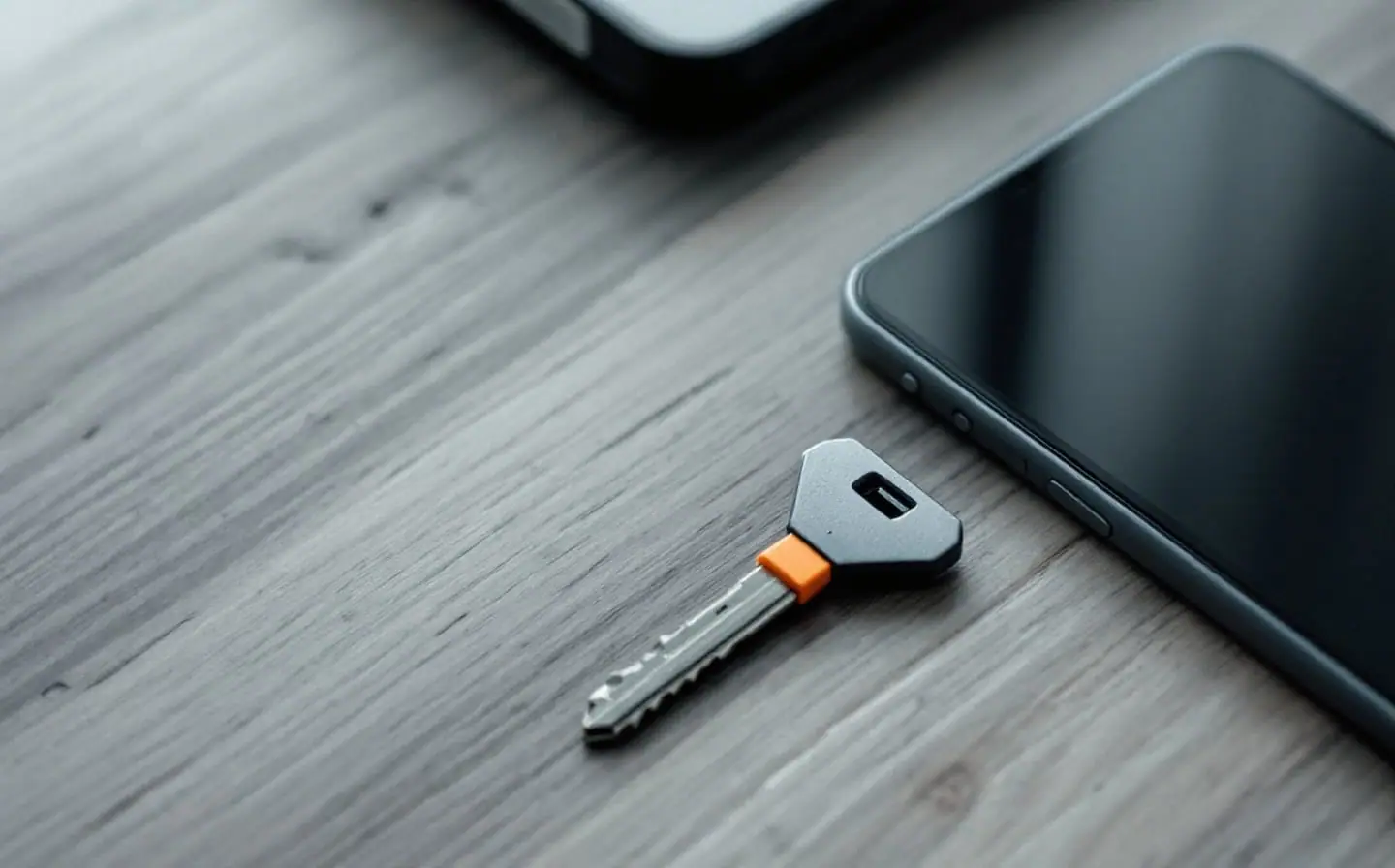
If you want a device-bound option for your most important accounts, a hardware security key follows the FIDO standard that the major email providers support, and the NFC kind can be tapped against a phone. We chose that pick from its published specifications and independent reviews, not from any trials of our own. Whatever brand you settle on, get two and register both, so a key lost on a trip does not lock you out.
Privacy kit
- YubiKey 5 NFC (USB-A)Stops phished passwords from opening your email and bank accounts.On Amazon
- YubiKey 5C NFC (USB-C)Two-step sign-in that a fake login page cannot copy.On Amazon
- Yubico Security Key NFC (USB-A)Phishing-resistant sign-in at a lower cost than the full YubiKey.On Amazon
Chosen from specifications, policies and published reviews; we have not tested these ourselves.
How the three fit together
Think of a chain that starts at your inbox. Almost every account you own can be reset by a link sent to your email, which means whoever controls your email can, given time, control nearly everything else. Your password manager holds a unique password for each account. Two-step sign-in protects the accounts that still run on passwords, above all your email and the password manager itself. Passkeys, where they are offered, remove the weakest link in that chain: the password you could be tricked into typing.
One evening, in this order
Set aside two hours. Do the steps in order and stop when you run out of energy; the first four do most of the work.
- Choose a password manager. If every device you own comes from one company, the built-in manager is fine. If you mix systems, pick a standalone one. Write the master passphrase on paper and keep it at home where you would keep a passport, not on a sticky note on the monitor.
- Turn on two-step sign-in for the password manager itself, with an authenticator app or a key if it offers one.
- Fix your main email account. Let the manager generate a new password, turn on two-step sign-in with an app or a key, and check the recovery phone number and recovery email address. Remove any you no longer control. Look at the list of signed-in devices and sign out anything you do not recognize.
- Add a passkey to that email account if it offers one.
- Repeat for the Apple, Google or Microsoft account your phone and laptop depend on, and for your mobile carrier account. Ask your carrier for an account PIN if you do not have one.
- Then the money: bank, credit cards, any payment app, and your tax and payroll logins.
- Stop. Everything else can wait for the next time you sign in to it. When the manager offers to save an old password, change it to a generated one first.
Recovery codes and the locked-out problem
Every security setting you add is also a new way to lock yourself out, and account recovery is where people lose accounts for good. When you turn on two-step sign-in, most services hand you a set of recovery codes: one-time codes that get you in if your phone is lost. Print them or write them down, and keep them with your master passphrase. Do not keep the only copy inside the password manager those codes are meant to help you reach. If your phone dies on a trip, a vault you can't open won't hand you anything.
A few more habits that save accounts:
- Register at least two second steps where a site allows it, such as an app and a key, or two keys.
- Check whether your authenticator app backs up its codes or can move them to a new phone. Some do and some don't, and you want to know before the old phone breaks.
- Set up the emergency or legacy access feature in your password manager or phone account, so a person you trust can reach your accounts if you can't.
- When you change your phone number, update it on your accounts before the old line lapses. Carriers reassign disconnected numbers, and a stranger with your old number can receive your codes.
Mistakes I see most often
- Using the master passphrase anywhere else, even once.
- Turning on text codes and stopping there, on the email account of all places.
- Reading a code to a caller who says they are from the fraud department.
- Tapping yes on a prompt just to make the notifications stop.
- Keeping a passkey on a single phone with no other way into the account.
- Saving recovery codes as a screenshot in a photo library that syncs to every device you own.
The one thing to do tonight
If two hours sounds like too much, do one thing. Open your email account's security settings, give it a password no other account has ever used, and turn on two-step sign-in with an authenticator app. That single change protects the reset link for nearly everything else you own, and the rest of the list can wait for next week.
Related briefings
- Remove Your Data
Google's Results about you tool: what it removes and what it can't
What Google's Results about you tool does, screen by screen, what it will and won't remove from Search, and how to pair it with people-search opt-outs.
- Data Privacy
Your phone number links more of your life than you think
Your phone number is a login, a recovery key and a search term. How SIM swaps work, how to lock your carrier account, and when a second number makes sense.
- Online Safety
The first hour after a data breach letter: what to do, in order
A breach letter arrived. Here is the first hour, in order: check that it is real, change passwords, freeze your credit and get an IRS IP PIN if needed.